

How to Reorder Custom Coffee Blends: A Step-by-Step Guide
Table of Contents
- Why Reordering Your Custom Coffee Blend Is Different From Buying a New One
- What You Need Before You Reorder Custom Coffee Blends
- Step 1: Log In and Locate Your Previous Blend
- Step 2: Review Your Flavor Profile and Roast Level
- Step 3: Adjust Your Order With Coffee Subscription Management Tools
- Step 4: How to Modify Coffee Blend Order Details Like Grind Size and Quantity
- Common Mistakes to Avoid When Reordering
- Conclusion: Keep Your Coffee Fresh and Your Routine Simple
- Frequently Asked Questions
Last Updated: September 5, 2026
Why Reordering Your Custom Coffee Blend Is Different From Buying a New One
When you finally land on a custom coffee blend that makes your morning routine feel effortless, the last thing you want is to start from scratch. Reordering is a completely different process than trying a new roast, because your goal shifts from exploration to consistency: you are trying to replicate a specific tasting experience down to the last bean.
This guide walks through the exact steps to reorder custom coffee, covering the account tools, flavor profiles, and logistics that keep your cup tasting the same every single time. The core challenge is simple: how do you ensure batch-to-batch consistency when coffee is an agricultural product that varies by harvest and season? A reliable reorder process solves that problem by locking in your preferences before the roaster even fires up the drum.
What most guides miss is that reordering is rarely about the click of a button. It involves verifying your roast level, adjusting your grind size for the season, and managing your inventory so you never run out. Below, we show you how to handle each step without losing the character of your blend.
What You Need Before You Reorder Custom Coffee Blends
Before you can reorder your favorite coffee, you need access to your account details and a clear memory of what made that blend special. The reorder process is designed to be quick, but skipping the prep work leads to mistakes like ordering the wrong roast profile or an incorrect bag size.
Your Coffee Depot Account and Order History
Your account serves as the single source of truth for every blend you have ordered. The order history logs the exact origin selection, the roasting style, and the packaging options you chose previously. Without this record, you would be trying to recall details from memory, which is unreliable when you are dealing with subtle differences between a medium roast and a dark roast.
A common mistake is assuming the roaster remembers your blend automatically. While many roasters keep notes, the burden is on you to verify the details before confirming a new order. Logging in and reviewing your past orders takes two minutes and prevents a week of disappointing cups.
Step 1: Log In and Locate Your Previous Blend
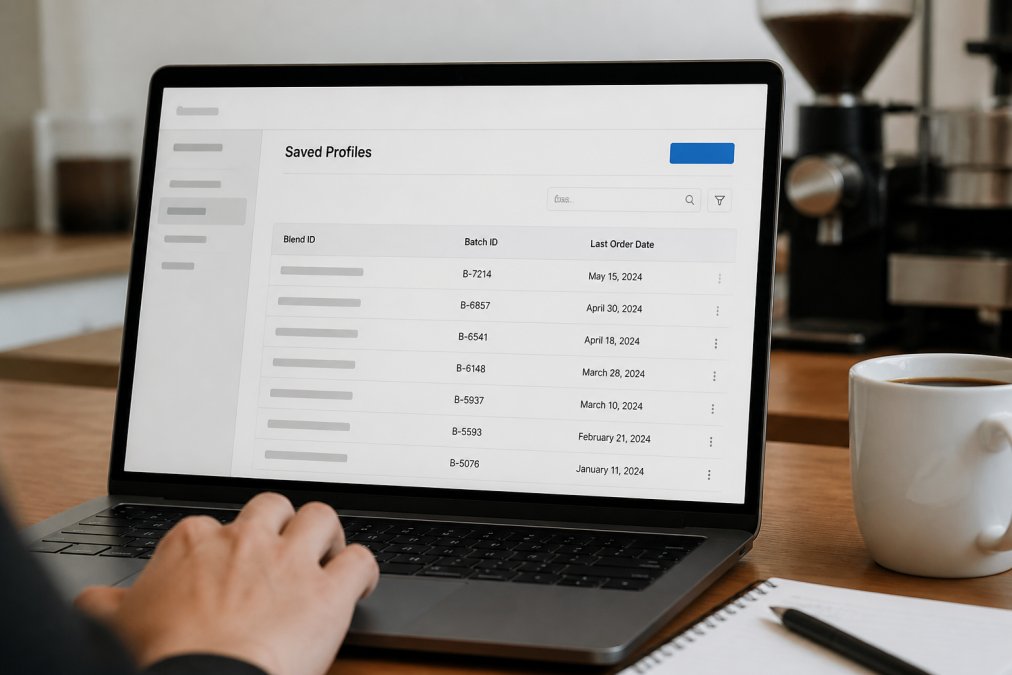
Start by logging into your Coffee Depot account and navigating to your order history. This is the only place where the full, immutable record of your blend lives, the exact origin percentages, the roast profile, the grind setting, and the packaging spec. Do not rely on memory or a past email receipt; the order history is the system of record.
Understanding Your Batch ID vs. Your Blend ID
This is the critical distinction most guides miss. Your Blend ID is the permanent identifier for your recipe (e.g., CD-6BEAN-0042). Your Batch ID (e.g., CD-6BEAN-0042-260815) is tied to the specific production run and the green coffee lots that were used. When you reorder, you are reordering the Blend ID, not the Batch ID. The roaster will use the Blend ID to pull your exact recipe, but the Batch ID tells you which harvest and lot the previous coffee came from. If you are chasing a specific flavor that you loved, note the Batch ID from your last order and mention it to your roaster, they can often source a similar lot or adjust the roast to compensate for seasonal drift.
The Saved Profile: More Than Just a Shopping Cart
When you locate your previous order, you will see a button that says "Reorder" or "Save as Profile." This is not a simple duplicate of a product page. The saved profile captures the following parameters in a structured format:
- Green Coffee Sourcing: The specific origins and their percentage ratios (e.g., 60% Ethiopia Yirgacheffe, 40% Colombia Huila).
- Roast Profile: The target drop temperature and development time ratio (e.g., a City+ roast with a 20% development time).
- Grind Specification: The exact micron setting or the burr gap used for your brewing method.
A common mistake is assuming the roaster remembers your blend automatically. While many roasters keep notes, the burden is on you to verify the details before confirming a new order. Logging in and reviewing your past orders takes two minutes and prevents a week of disappointing cups.
If Your Blend Is Not in Order History
If you are reordering after a long gap, double-check that the blend is still listed as an active product, since seasonal offerings occasionally rotate. If it is missing, contact the roaster directly and provide your Blend ID. A reputable roaster will have your recipe archived and can rebuild it even if the product page has been retired.
Step 2: Review Your Flavor Profile and Roast Level
The flavor profile is the heart of your blend, and it deserves a careful look before you confirm anything. Coffee sourcing changes throughout the year, so the batch you received six months ago may taste slightly different from what arrives next week. Review the tasting notes on your saved profile and decide if you want to lock them in exactly or make a minor adjustment.
Roast level matters just as much. Your saved order likely specifies a roasting style, such as a dark roast for espresso or a medium roast for a balanced drip cup. Reordering with the wrong roast level is the fastest way to ruin a good blend, because the roast dictates how the origin characteristics express themselves in the cup.
Step 3: Adjust Your Order With Coffee Subscription Management Tools
Coffee subscription management tools exist to take the guesswork out of your reorder cadence. If you found a blend you love, you can set it to arrive on a schedule that matches your consumption rate, whether that is every two weeks or once a month. This eliminates the risk of running out and the temptation to buy stale grocery store beans as a stopgap.
You are not locked into a rigid plan. Many services let you skip a delivery, pause your subscription, or push the next shipment out by a week if your inventory is still full. The flexibility matters for remote workers and home brewers whose consumption spikes and dips with their schedules.
Step 4: How to Modify Coffee Blend Order Details Like Grind Size and Quantity
Whole bean versus ground is the most common modification when reordering, and it depends entirely on your brewing equipment. If you use a burr grinder, whole bean preserves freshness longer because the coffee is not exposed to oxygen until you grind it. If you brew with a drip machine or a French press without a grinder, select the grind size that matches your method, such as coarse for French press or fine for espresso.
Quantity is the second lever. Reordering the same bag size is convenient, but scaling up often makes sense if you are brewing for a household or hosting guests. The trade-off is freshness: coffee begins to stale after the roast date, so a larger bag only works if you will consume it before the flavor degrades.
| Order Detail | Options | Best For |
|---|---|---|
| Grind Size | Whole bean, coarse, medium, fine | Matching your brew method |
| Quantity | 12 oz, larger formats | Households vs. solo drinkers |
| Roast Level | Light, medium, dark | Matching your flavor preference |
| Frequency | One-time, bi-weekly, monthly | Managing your inventory |
Common Mistakes to Avoid When Reordering
The most frequent error is ignoring the roast date on your previous order and assuming the new shipment will taste identical. Coffee is perishable, and even the best roast-to-order service cannot control for the natural variance in harvests. If you notice flavor drift between batches, the issue is often the origin lot, not the roaster's skill.
The Flavor Drift Diagnostic: A Systematic Approach
When a reordered batch tastes different, do not immediately blame the roaster or change your recipe. Instead, run a controlled diagnostic to isolate the variable. Flavor drift is rarely a single point of failure; it is usually a combination of two or three factors. Here is the sequence to follow:
- Check the Roast Date and Resting Period: Coffee is at its peak flavor between 5 and 14 days post-roast (peer-reviewed research). If your new batch arrived 2 days after roasting and you brewed it immediately, it will taste grassy and flat compared to your previous batch that had rested for 10 days. Wait until day 7 and cup it again before making any judgments.
- Verify the Batch ID Against the Green Coffee Lot: If the new batch tastes distinctly different (e.g., more acidic or more earthy), compare the Batch ID on the new bag to your previous one. If the roaster had to switch the origin lot due to a crop failure, the flavor will shift. This is not an error; it is an agricultural reality. Ask your roaster if they adjusted the roast profile to compensate for the new lot. A skilled roaster will often tweak the development time by 5-10% to keep the cup profile consistent even when the bean changes.
- Isolate Your Brewing Variables: Change one variable at a time. If the new batch tastes bitter, do not change the grind and the water temperature simultaneously. First, check your water temperature. If you are using a pour-over and your kettle is set to 205°F, but the ambient room temperature has dropped, the slurry temperature may be lower, leading to under-extraction (sca.coffee). Adjust the grind size by one click on your grinder and taste again.
- The 10% Rule for Grind Adjustments: If the coffee tastes sour (under-extracted), grind finer by roughly 10% of your current setting (homegrounds.co). If it tastes harsh and dry (over-extracted), grind coarser by 10%. Do not make micro-adjustments; a 10% change is the minimum threshold to notice a difference in the cup.
The Inventory Runout Trap
Another mistake is neglecting your reorder process until you are completely out of beans. This forces you into a rush order, which may not align with the roaster's production schedule. A better approach is to track your consumption rate and place the reorder a few days before your current bag runs out, accounting for shipping time. A common pattern is to order a 12 oz bag every two weeks. If you are running low on day 10, adjust your subscription frequency to every 10 days rather than waiting to run out and ordering a larger bag that will go stale.
When to Request a Roast Profile Adjustment
If you have confirmed the green coffee lot has changed and the flavor is still off after adjusting your brew variables, it is time to talk to your roaster about a profile adjustment. Do not ask them to 'make it taste the same.' Instead, provide specific sensory feedback. For example, say, "The new batch has a pronounced astringent finish that the previous batch did not have." This gives the roaster actionable data to adjust the roast curve without compromising the blend's core identity.
Conclusion: Keep Your Coffee Fresh and Your Routine Simple
Reordering coffee blends does not have to be a chore. By logging into your account, reviewing your flavor profile, and using the subscription tools available to you, the entire process takes less time than brewing your first cup of the day. The consistency you gain is worth the few minutes of verification.
At Coffee Depot, every bag is roasted only after you place your order, then shipped directly to your door for maximum freshness. Whether you are restocking the 6 Bean Blend for espresso or the House Blend for your daily drip, your saved preferences make the reorder seamless. Get started with Coffee Depot and keep your favorite blend flowing without interruption.

Frequently Asked Questions
Does Coffee Depot keep a history of my previous custom blends?
Yes. Your Coffee Depot account stores your order history, including the exact blend ratios, roast level, and grind size from past purchases. When you log in, you can view this history under your account dashboard. Look for the order details of your last custom blend and select the option to reorder. This saves you from having to re-specify your entire recipe from scratch each time.
Can I modify my custom coffee blend when I reorder?
Absolutely. Reordering does not lock you into your previous recipe. When you reorder coffee blends, you have the option to adjust components like the grind size. This is useful if you want a finer grind for a new brewing method.
Is there a subscription option for reordering custom coffee blends?
Yes, you can set up a subscription for your blend. Coffee subscription management tools let you schedule deliveries on a weekly or monthly basis. This ensures you get a consistent supply of your favorite coffee without having to remember to place a new order manually.
How do I ensure my reordered coffee tastes the same as my last batch?
To maintain batch consistency, ensure your saved recipe is accurate before confirming the reorder. Avoid changing your grind size if you loved the previous batch. Our roast-to-order process guarantees the coffee is fresh. If you notice flavor drift, check your brewing water and grind settings, as these factors change the taste more often than the beans themselves.